


How to Create a Stunning Logo With Canva
Your logo is the face of your brand—it communicates who you are, what you do, and leaves a lasting impression on your audience. A well-designed logo can set your business apart, but you don’t need to hire an expensive designer to create one. With Canva, a user-friendly design tool, you can craft a professional logo that reflects your brand’s identity in just a few easy steps.
In this guide, we’ll walk you through how to design a logo with Canva that’s not only visually appealing but also aligns with your brand's message.
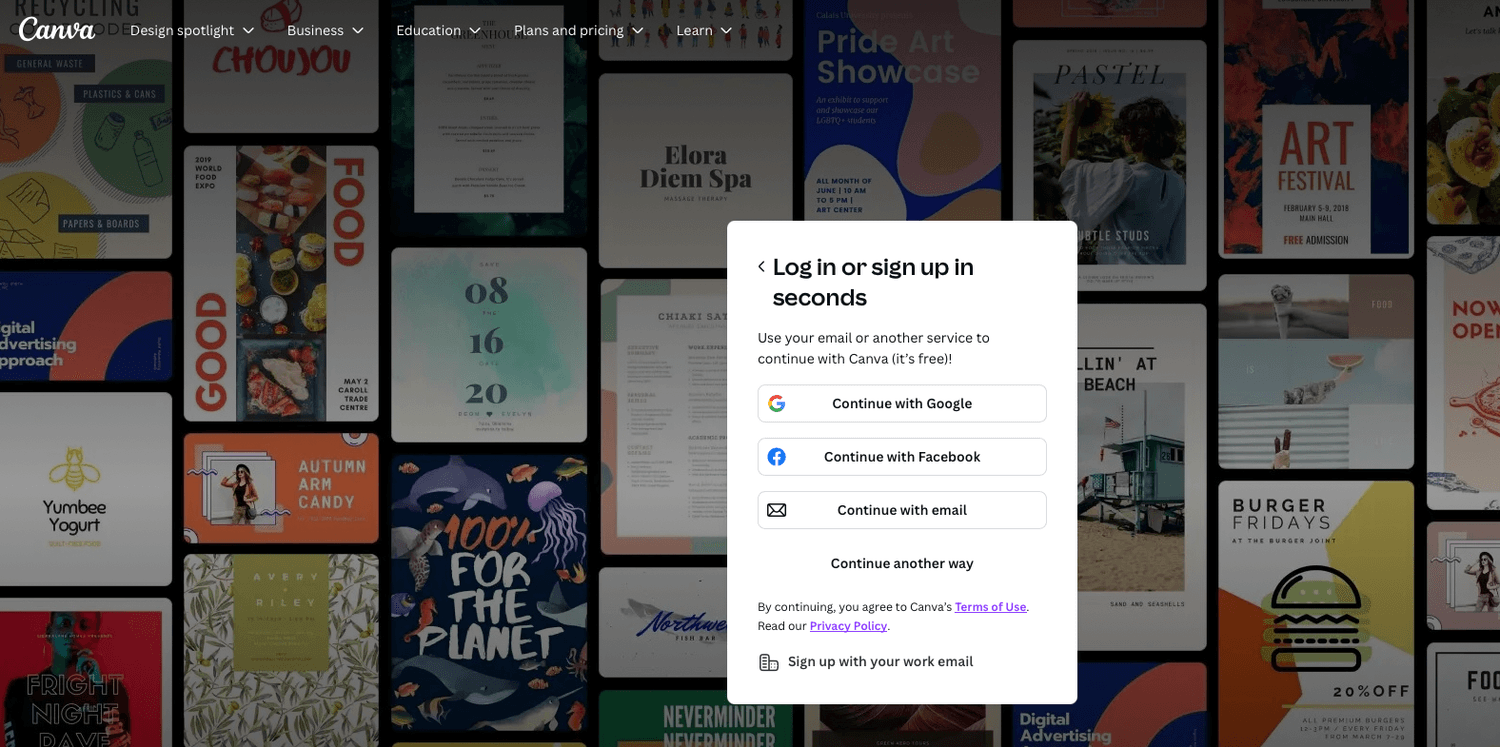
Step 1: Sign Up or Log In to Canva
Visit canva.com and create a free account or log in.
Canva Pro is optional but offers access to premium features, like custom fonts, unique templates, and transparent backgrounds.
Step 2: Choose the Logo Template
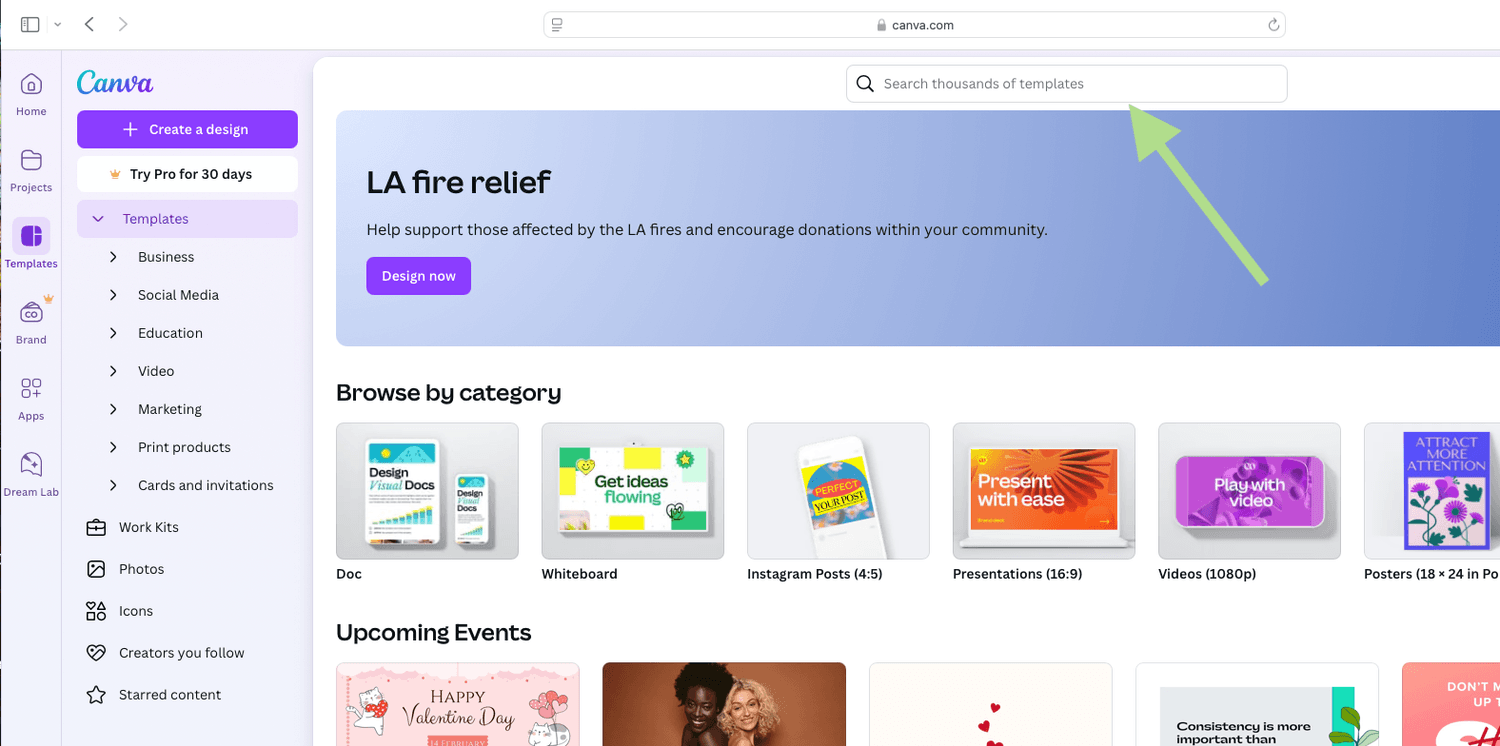
From the Canva homepage, type “Logo” in the search bar and press Enter.
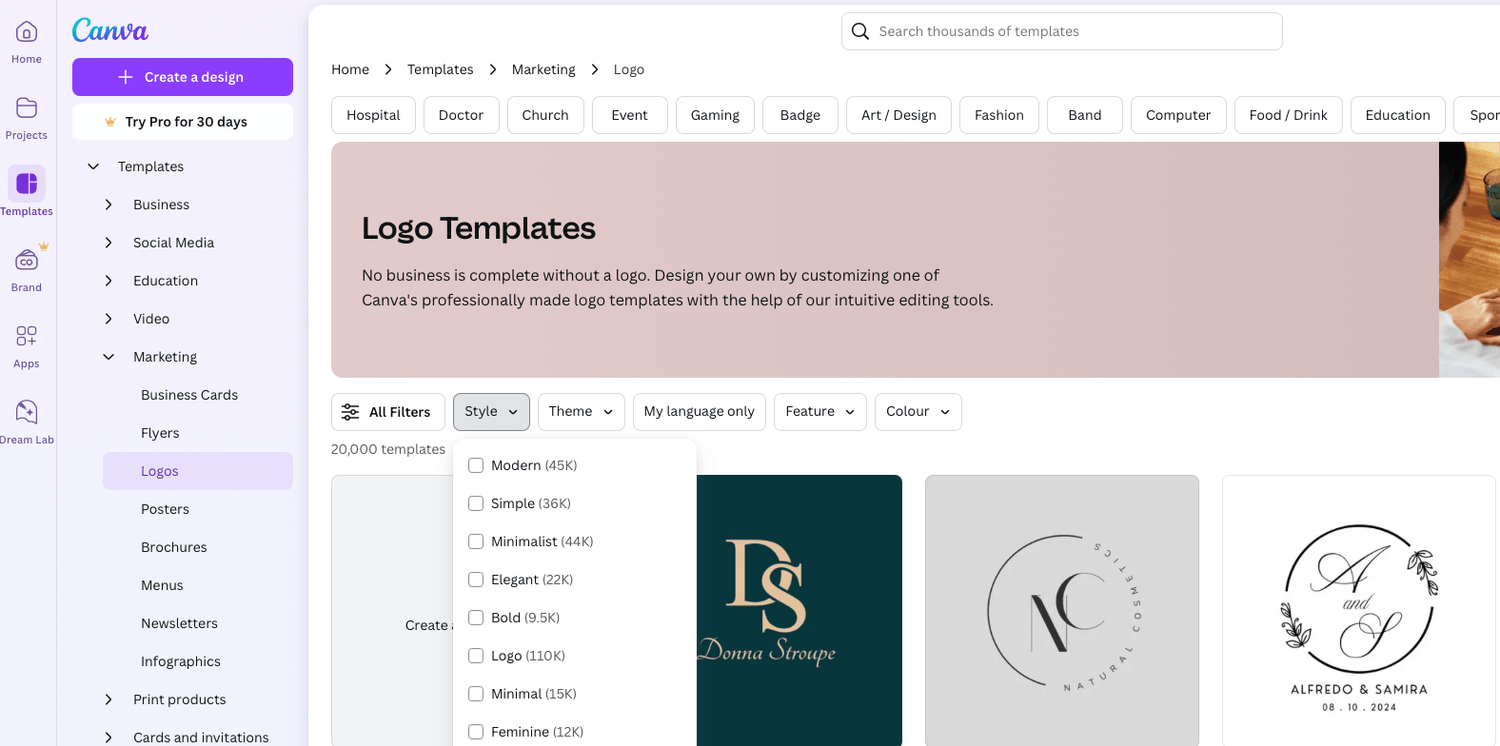
Browse hundreds of customizable logo templates. Pro Tip: Look for templates that match your industry or style. For example: Minimalist templates for tech brands. Bold, colorful templates for creative industries.
Click on a template to start designing.
Step 3: Define Your Brand Style
Before diving into design, clarify your brand’s identity:
Mission and Values: What does your business stand for?
Target Audience: Who are you trying to attract?
Visual Preferences: Do you prefer clean and modern, bold and colorful, or something in between?
This clarity will guide your design choices for colors, fonts, and icons.
Step 4: Customize Your Template
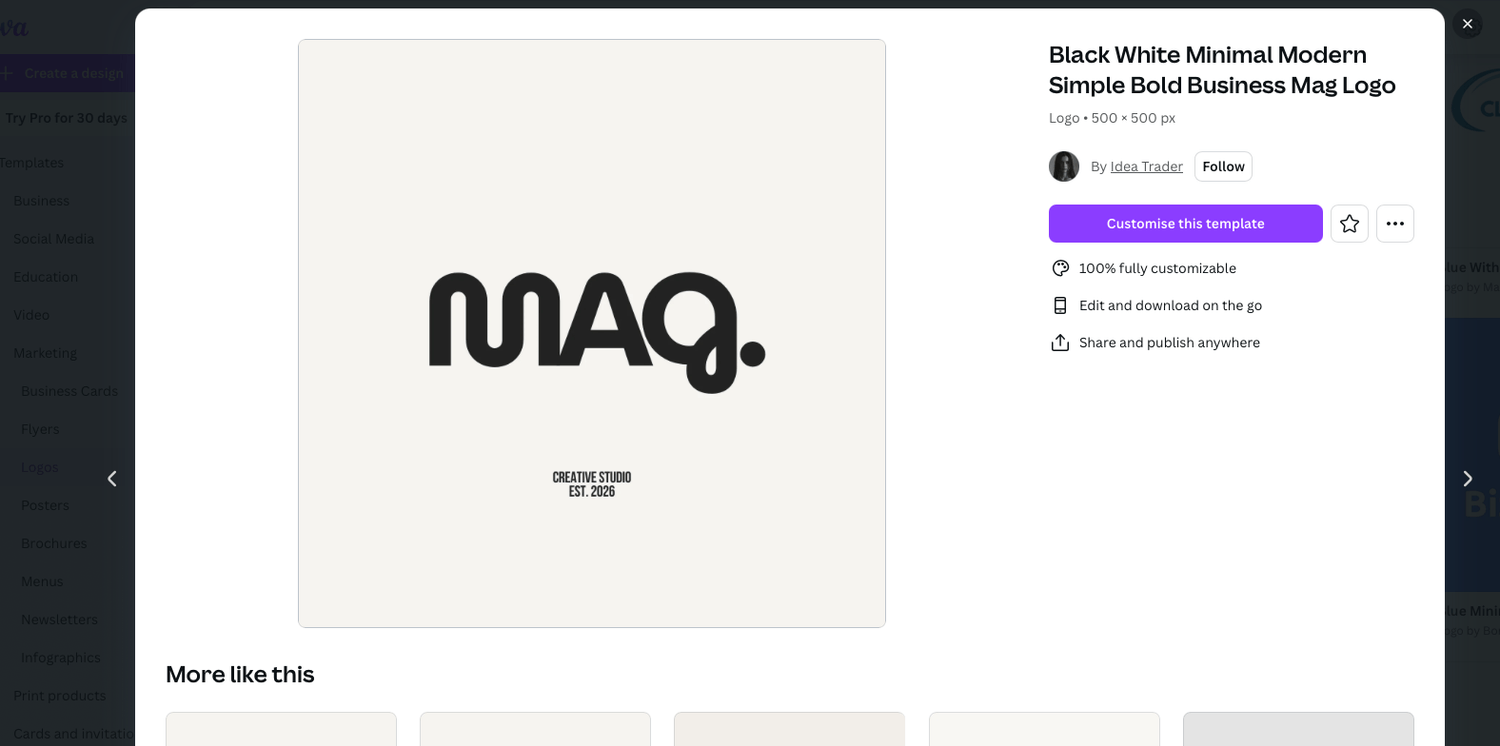
Once you’ve selected a template, it’s time to make it uniquely yours.
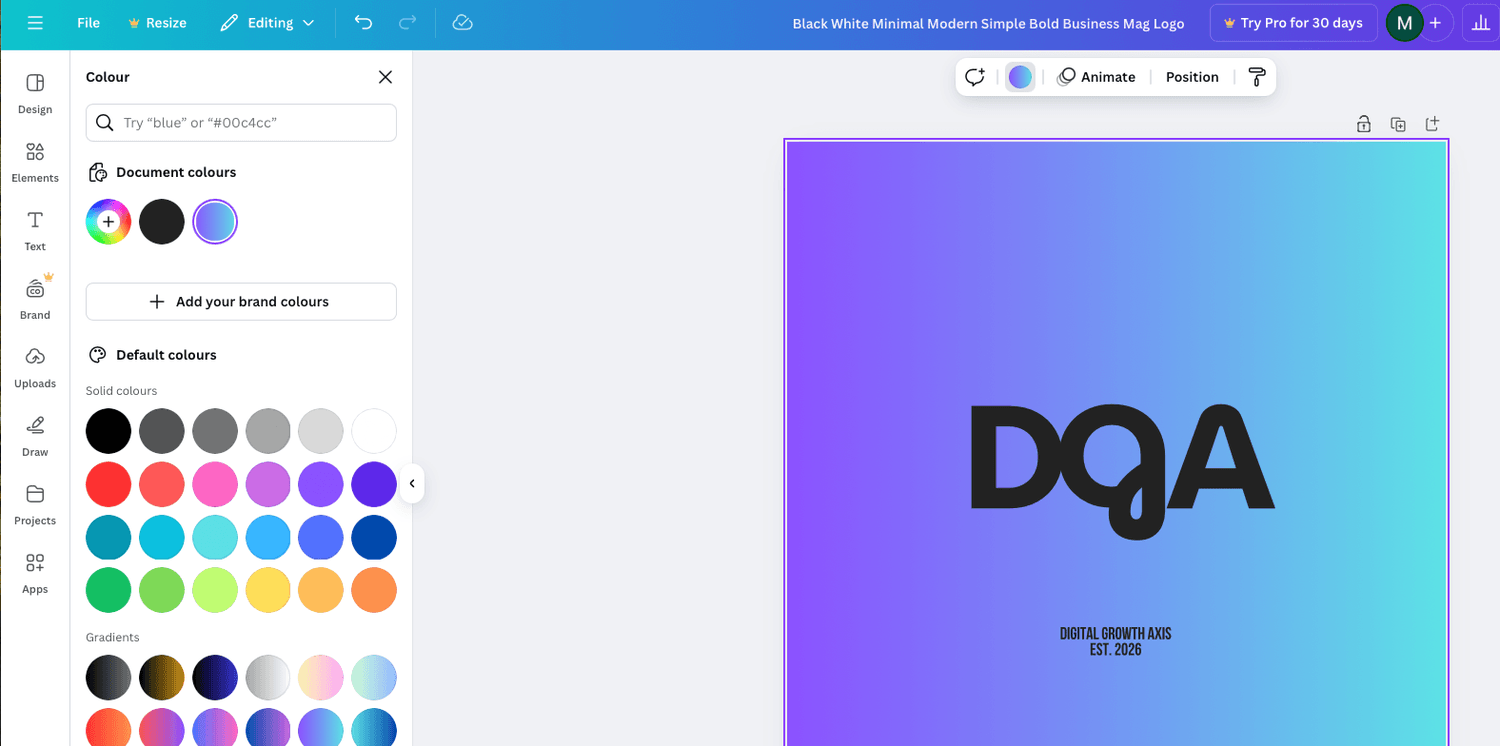
1. Adjust Colors:
Choose colors that reflect your brand identity. For example:
Blue conveys trust and professionalism.
Green symbolizes growth and sustainability.
Bold colors like red or orange convey energy and creativity.
Use Canva’s Color Palette Generator to find complementary colors or add your specific brand hex codes.
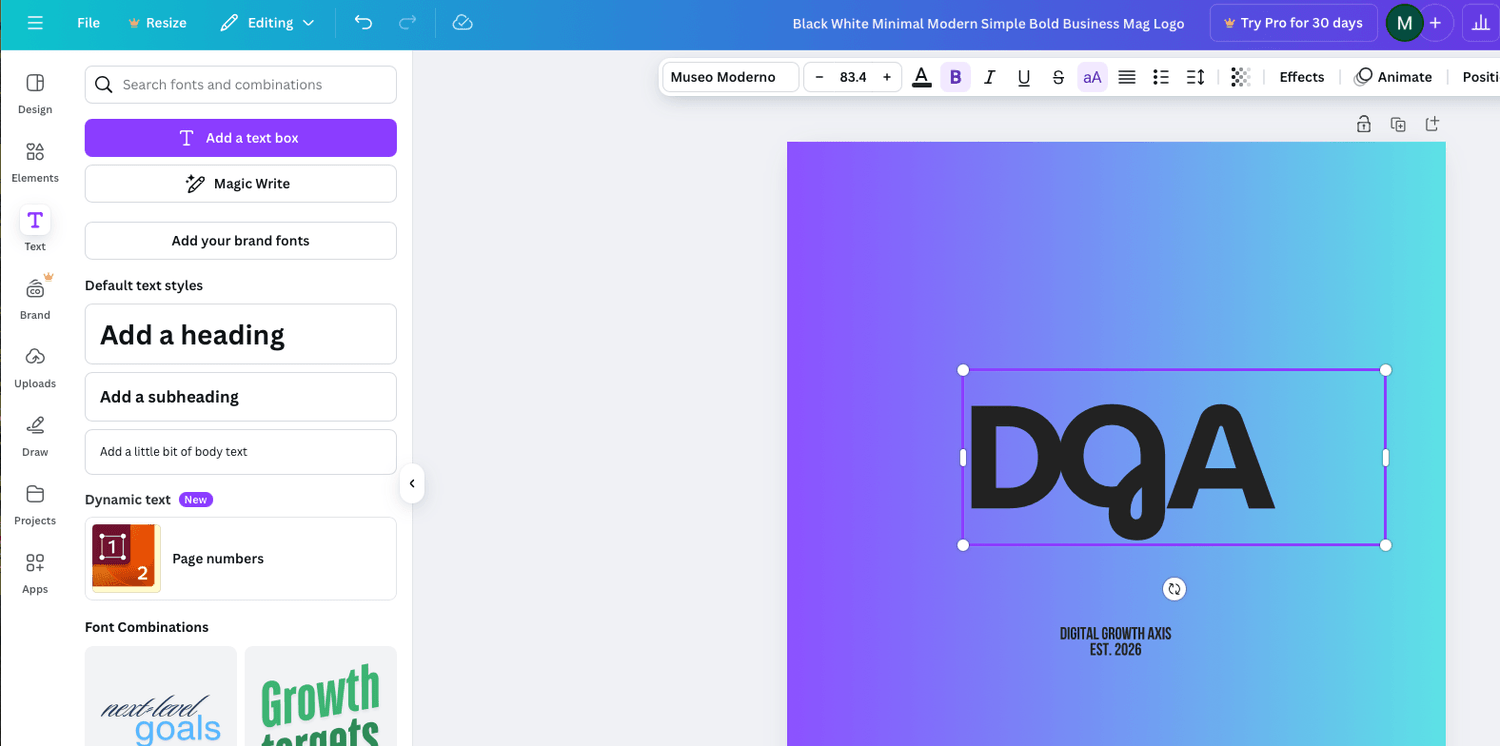
2. Edit Text:
Replace placeholder text with your business name and tagline.
Experiment with fonts that match your brand’s tone:
Sans-serif fonts for modern, minimalist vibes.
Serif fonts for a classic, sophisticated look.
Script fonts for creative or elegant brands.
Canva allows you to adjust font size, spacing, and alignment to achieve the perfect look.
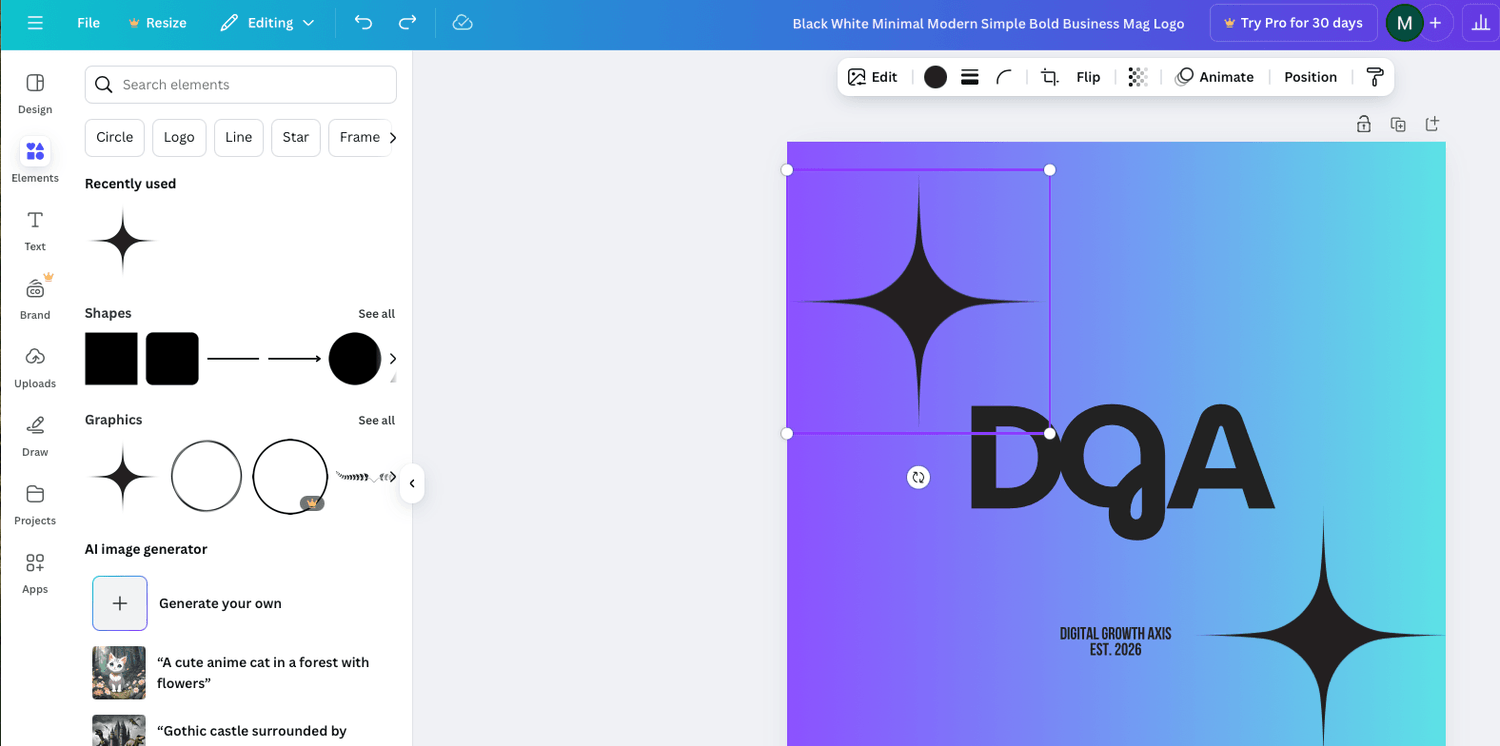
3. Add Icons or Graphics:
Search Canva’s Elements tab for icons or illustrations that fit your brand.
For example, if you run a bakery, search for “cupcake” or “rolling pin” icons.
Keep your design simple—don’t clutter your logo with too many elements.
4. Experiment with Layouts:
Move elements around to see what works best.
Try circular, square, or horizontal layouts based on how you’ll use your logo (e.g., social media, websites, or business cards).
Step 5: Add a Professional Touch
Transparent Background: If you’re using Canva Pro, export your logo with a transparent background to use it seamlessly across various platforms.
Scale Appropriately: Ensure your logo looks good at different sizes (e.g., on a website header, social media profile, or merchandise).
Consistency: Save your final color palette, fonts, and icon choices to maintain brand consistency.
Step 6: Download Your Logo
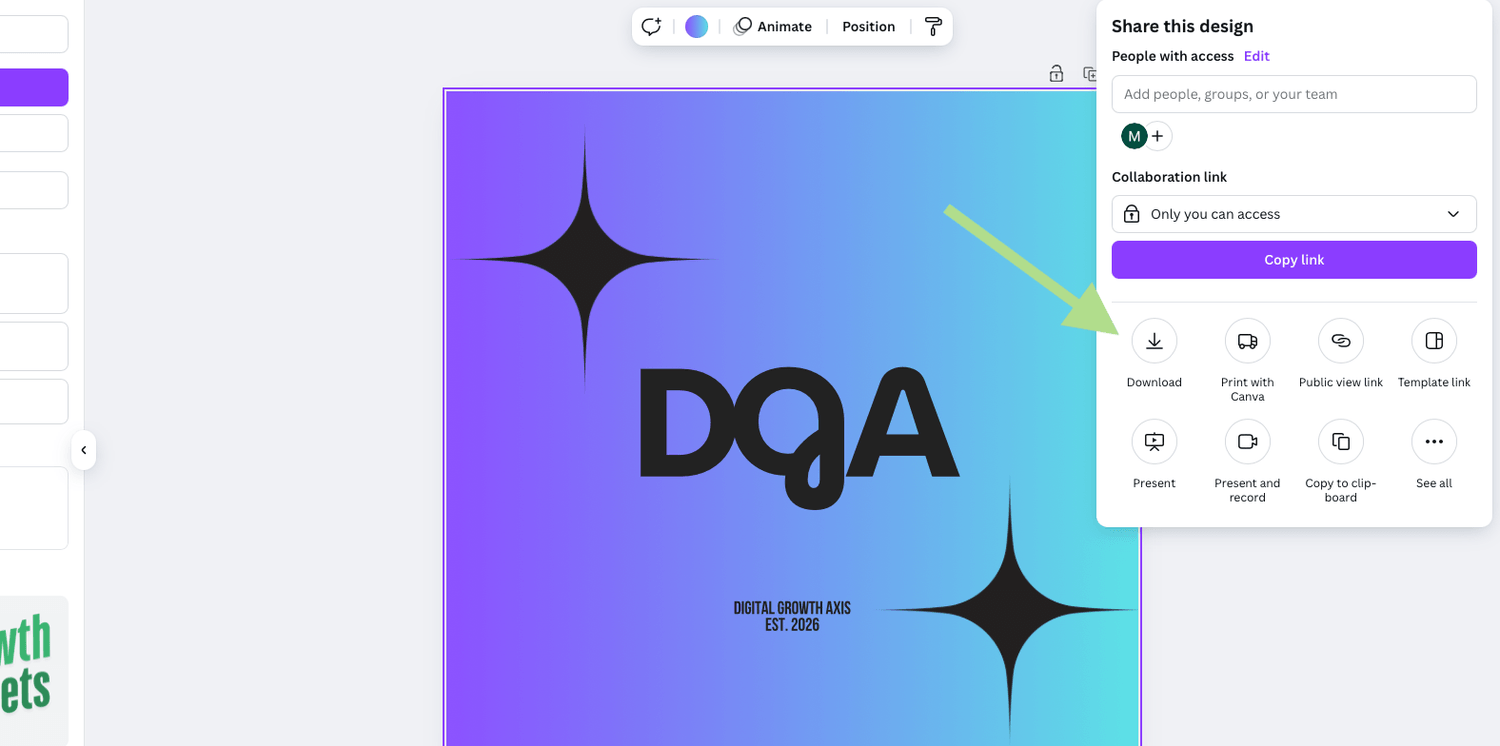
1. Once your design is complete, click the Share button in the top-right corner.
2. Choose Download and select the following options:
File Type: PNG for high-quality graphics.
Transparent Background (Pro only): Essential for overlaying your logo on different backgrounds.
Pro Tips for Creating an Effective Logo
1. Keep It Simple:
A great logo is clean, memorable, and easy to recognize.
Avoid using too many fonts, colors, or elements.
2. Make It Versatile:
Your logo should look good in black and white, as well as in color.
Test how it appears on light and dark backgrounds.
3. Think About Scalability:
Ensure your logo is clear and legible at all sizes, from a business card to a billboard.
4. Test It Out:
Show your design to friends, family, or colleagues and gather feedback before finalizing.
Why Use Canva for Logo Design?
User-Friendly: No design skills? No problem! Canva’s drag-and-drop interface makes designing simple.
Affordable: With a free version and cost-effective Pro options, it’s budget-friendly for startups.
Extensive Library: Canva offers a vast selection of templates, icons, and fonts to customize.
Fast Results: Create a professional logo in minutes without waiting for a designer.
Conclusion
Creating a logo with Canva is a simple and effective way to bring your brand to life. With its wide range of customizable templates, easy-to-use tools, and professional features, you can design a logo that reflects your business’s identity and sets you apart from the competition.
Get started with Canva today and design the perfect logo for your brand. Have questions or need tips? Drop a comment below—we’re here to help!
Affiliate Disclosure: This post contains affiliate links. If you sign up for Canva through our link, we may earn a small commission at no extra cost to you.
Let us know what you think in the comments!
Quick links
Newsletter
Subscribe to the newsletter and stay in the loop! By joining, you acknowledge that you'll receive our newsletter and can opt-out anytime hassle-free.
Created with ©systeme.io